
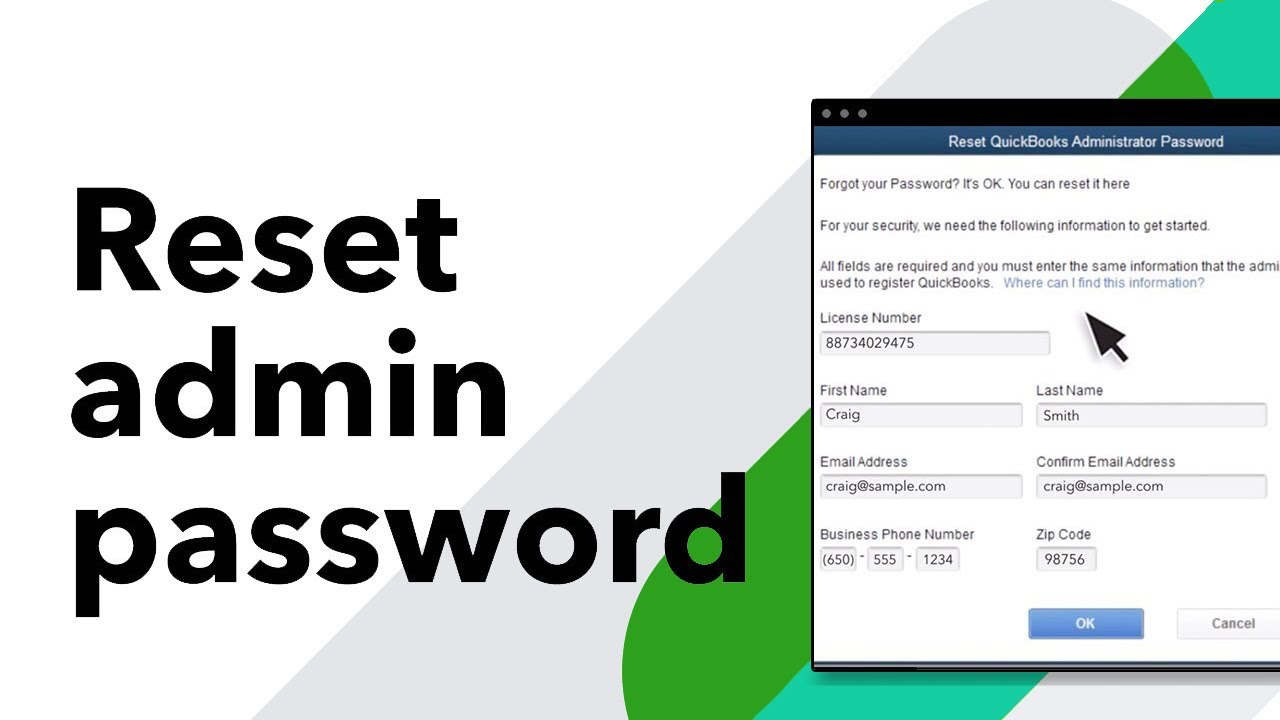
Forgetting a password is a common experience, especially when you manage multiple accounts and business applications. If you are unable to sign in to QuickBooks because you cannot remember your password, it can interrupt your workflow and delay important accounting tasks. Fortunately, QuickBooks provides secure ways to reset your password and regain access to your account or company file.
The exact recovery process depends on whether you are resetting the password for your QuickBooks account or the password that protects your company file. In either case, following the correct steps can help you restore access while keeping your financial information secure.
Why Might You Need to Reset Your QuickBooks Password?
There are several reasons why you may need to create a new password.
Some of the most common include:
- Forgotten login credentials
- Expired passwords
- Repeated unsuccessful sign-in attempts
- Security recommendations
- Account protection after suspicious activity
- Password changes made on another device
- Company file password updates
- Incorrect saved login information
- Browser-related sign-in issues
- Multi-user access changes
Understanding the reason can help you choose the appropriate recovery method.
Identify Which Password Needs to Be Reset
QuickBooks uses different types of passwords depending on how you access the software.
You may need to reset:
- Your QuickBooks account password
- Your company file password
- A user password in a multi-user environment
Confirming which password is causing the issue will help you follow the correct recovery process.
Verify Your Login Information
Before beginning the password reset process, carefully check the information you entered.
Make sure:
- Your user name is correct.
- There are no typing mistakes.
- The keyboard is using the expected language and layout.
- The password is entered exactly as intended.
Simple typing errors are often mistaken for forgotten passwords.
Use the Password Recovery Option
- If you cannot remember your password, use the password recovery option provided during the sign-in process.
- Follow the prompts to verify your identity and create a new password.
- Choose a password that is both secure and easy for you to remember.
- After creating the new password, sign in again to confirm that the reset was successful.
Check Your Verification Information
- Password recovery often requires identity verification.
- Depending on your account settings, you may need to complete a verification step before creating a new password.
- Ensure that you have access to the verification method associated with your account so the recovery process can be completed smoothly.
Reset the Company File Password
- If you can access QuickBooks but cannot open the company file, the company file password may need to be reset.
- After completing the required verification process, create a new company file password that meets the recommended security requirements.
- Once the password has been updated, open the company file to verify that access has been restored.
Create a Strong Password
- When choosing a new password, make it unique and difficult for others to guess.
- A strong password should avoid common words, easily guessed information, or repeated patterns.
- Using a unique password helps protect your financial information from unauthorized access.
Update Saved Passwords
- If your browser or password manager stores outdated login information, it may continue entering the old password automatically.
- Update any saved credentials after resetting your password.
- This helps prevent repeated sign-in failures caused by outdated information.
Restart Your Browser or Computer
- After changing your password, restart your browser or computer before signing in again.
- Restarting clears temporary session data and refreshes the sign-in process.
- This simple step often resolves temporary login issues.
Clear Browser Cache
- If you access QuickBooks through a web browser, stored cache and cookies may interfere with the updated login information.
- Clearing browser data helps ensure that the latest password is used during sign-in.
- After clearing the cache, attempt to log in again.
Tips to Prevent Future Password Problems
Following a few simple habits can make password management much easier.
Create a Memorable Password
Choose a password that is secure while remaining easy for you to remember.
Update Passwords Periodically
Regular password updates improve account security.
Store Passwords Securely
Use a trusted password management method if needed.
Keep Recovery Information Updated
Current recovery details make password recovery much faster.
Review Account Activity
Monitoring account access helps identify unusual sign-in activity.
Avoid Sharing Login Credentials
Limiting password access improves the overall security of your QuickBooks account.
FAQs
What should I do if I forget my QuickBooks password?
Use the password recovery option available during sign-in, complete the required identity verification, and create a new secure password.
Can I reset my QuickBooks company file password?
Yes. If you have the required authorization and complete the verification process, you can reset the password protecting your company file.
Why does QuickBooks keep rejecting my password?
This may happen because of typing errors, outdated saved credentials, browser issues, expired passwords, or incorrect login information.
Should I update saved passwords after resetting my QuickBooks password?
Yes. Updating stored passwords prevents your browser or password manager from automatically entering outdated login information.
How can I avoid password problems in the future?
Create a strong and memorable password, keep your recovery information updated, store your credentials securely, avoid sharing passwords, and review your account activity regularly.
Conclusion
Forgetting your QuickBooks password can temporarily interrupt your work, but recovering access is usually a straightforward process. Whether you need to reset your account password or the password protecting your company file, identifying the correct recovery method is the key to restoring access quickly.
