
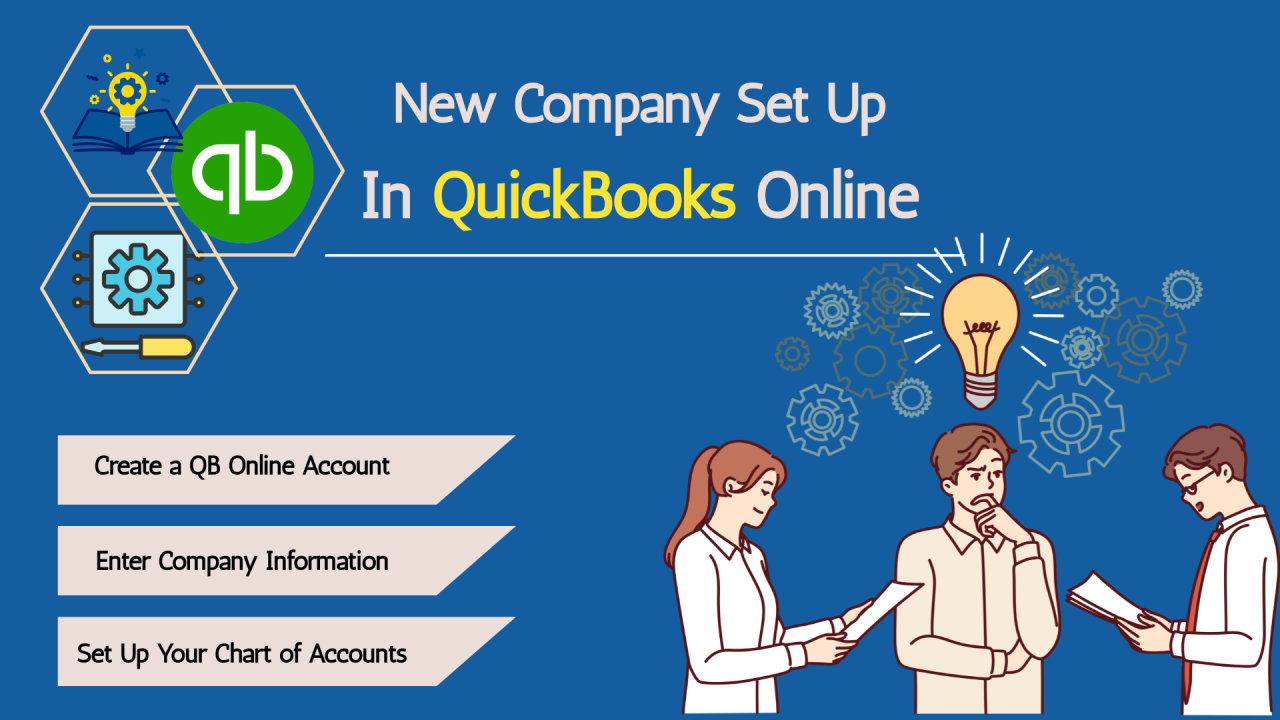
QuickBooks Online is one of the most widely used cloud-based accounting solutions for small businesses, freelancers, startups, and growing organizations. It helps users manage income, expenses, invoices, bills, taxes, payroll, and financial reports from virtually anywhere with an internet connection. Since your financial data is stored securely in the cloud, you can access your business information from multiple devices without worrying about manually transferring files.
Things to Prepare Before Setting Up QuickBooks Online
Before beginning the setup process, gather the information you will need.
Business Information
Keep your business name, address, contact details, and industry information readily available.
Tax Information
Have your tax-related information prepared so you can configure your accounting settings accurately.
Banking Details
Prepare the information for the business bank accounts you plan to connect.
Customer and Vendor Information
Collect contact details for your customers and suppliers.
Products and Services
Prepare a list of the products or services your business offers.
Opening Balances
If you are moving from another accounting system, have your opening balances available.
How to Set Up QuickBooks Online Step by Step
Create Your Account
Sign in and create your QuickBooks Online account using your business information.
Enter Company Details
Complete your company profile by adding your business name, address, industry, and contact information.
Customize Your Business Settings
Review and configure preferences such as currency, financial year, tax settings, and invoice preferences.
Set Up the Chart of Accounts
Review the default chart of accounts and customize it to match your business requirements.
Add Customers
Create customer profiles by entering their names and contact information.
Add Vendors
Enter supplier information for businesses or individuals you purchase from regularly.
Create Products and Services
Add the products or services your business sells so they can be included on invoices and reports.
Connect Your Bank Accounts
Link your business bank accounts to simplify transaction tracking and account reconciliation.
Configure Payment Preferences
Set up the payment methods your business accepts from customers.
Customize Invoice Templates
Modify invoice layouts to match your business branding and preferences.
Invite Team Members
If multiple people will manage your accounting, assign appropriate user roles and permissions.
Review Your Settings
Double-check all business information before beginning regular bookkeeping.
Record Your First Transactions
Enter sample income and expense transactions to confirm that everything is working correctly.
Common Problems During QuickBooks Online Setup
Some users may encounter challenges while setting up their account.
Incorrect Company Information
Entering inaccurate business details may affect invoices and financial reports.
Duplicate Customer Records
Creating duplicate customer profiles can lead to confusion and reporting errors.
Bank Connection Problems
Some users may experience temporary issues while connecting bank accounts.
Incorrect Tax Configuration
Improper tax settings may affect future financial records.
Missing Opening Balances
Starting without accurate opening balances can impact financial reporting.
User Permission Issues
Incorrect user permissions may prevent team members from accessing required features.
How to Fix QuickBooks Online Setup Problems
Review Your Company Information
Verify that all business details have been entered correctly.
Update Banking Information
Reconnect bank accounts if synchronization issues occur.
Remove Duplicate Records
Merge or delete duplicate customer and vendor entries whenever possible.
Verify Tax Settings
Review tax preferences to ensure they match your business requirements.
Check User Permissions
Assign appropriate access levels to each user.
Review the Chart of Accounts
Ensure the account categories accurately reflect your business activities.
Test Your Setup
Create a sample invoice and record a test expense to verify that everything functions correctly.
Tips for Using QuickBooks Online Efficiently
Following these best practices helps maintain accurate financial records.
- Keep your company information updated.
- Review bank transactions regularly.
- Reconcile accounts frequently.
- Record income and expenses promptly.
- Organize customer and vendor records.
- Customize invoices for a professional appearance.
- Monitor financial reports regularly.
- Back up important financial information when appropriate.
- Review user permissions periodically.
- Stay current with software updates and new features.
Common Mistakes to Avoid
Avoid these common mistakes when setting up QuickBooks Online.
- Entering incorrect company information.
- Skipping the review of tax settings.
- Ignoring the chart of accounts.
- Creating duplicate customer or vendor records.
- Forgetting to connect business bank accounts.
- Assigning incorrect user permissions.
- Beginning bookkeeping before verifying the setup.
Avoiding these mistakes can save time and improve the accuracy of your financial records.
FAQs
How long does it take to set up QuickBooks Online?
The setup time depends on the size and complexity of your business, but many users can complete the basic setup within a few hours.
Do I need to connect my bank account during setup?
No. You can connect your business bank accounts later, but doing so during setup helps automate transaction tracking.
Can I customize invoices in QuickBooks Online?
Yes. You can personalize invoice templates to reflect your business branding and preferences.
Why is the chart of accounts important?
The chart of accounts organizes your financial information and helps generate accurate reports for your business.
How can I keep my QuickBooks Online account organized?
Review transactions regularly, reconcile your accounts, maintain accurate customer and vendor records, monitor financial reports, update your business information when needed, and periodically review user permissions.
Conclusion
Setting up QuickBooks Online properly provides a strong foundation for managing your business finances efficiently. By entering accurate company information, organizing your chart of accounts, adding customers and vendors, connecting bank accounts, customizing invoices, and reviewing your settings carefully, you can create an accounting system that supports your business as it grows.
