
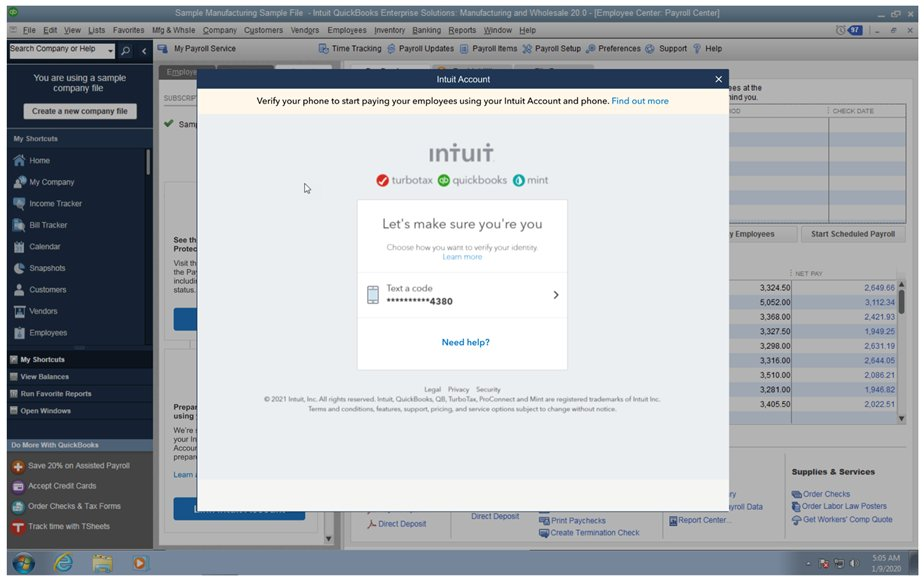
Multi-factor authentication has become one of the most effective ways to secure online accounts. Instead of relying only on a password, it requires an additional verification method, such as a code sent to your mobile device, a notification in an authentication application, a security key, or biometric verification. This extra layer of security helps protect sensitive information, even if your password becomes compromised.
Why Is Multi-Factor Authentication Not Working?
Multi-factor authentication depends on accurate communication between your account, your authentication method, and your device. If any part of this process fails, authentication may not complete successfully.
Some common causes include:
- Poor internet connection
- Weak mobile network signal
- Incorrect date and time settings
- Outdated authentication application
- Expired verification codes
- Incorrect account configuration
- Device synchronization problems
- Recently changed phone or device
- Temporary server issues
- Disabled authentication settings
Identifying the cause helps you restore access more quickly.
Check Your Internet Connection
Many authentication methods require an active internet connection.
Verify that:
- Your internet connection is stable.
- Other online services are working properly.
- Your device remains connected during the authentication process.
An unstable connection may prevent verification requests from completing.
Verify Your Mobile Network
If your verification code is delivered through text messages or phone calls, ensure your mobile network is working correctly.
Check that:
- Your device has network coverage.
- Airplane mode is turned off.
- You can receive messages normally.
Poor mobile reception may delay or prevent verification codes.
Check the Date and Time Settings
Incorrect date or time settings can prevent authentication applications from generating valid security codes.
Ensure that your device is using the correct:
- Date
- Time
- Time zone
Automatic date and time settings usually provide the best results.
Restart Your Device
- Temporary software issues may interfere with the authentication process.
- Restart your device and try signing in again.
- Restarting refreshes background services and often resolves temporary communication problems.
Update Your Authentication Application
Authentication applications receive updates that improve security and compatibility.
Keeping the application updated helps improve:
- Performance
- Reliability
- Security
- Compatibility
Restart the application after updating.
Update Your Operating System
An outdated operating system may cause compatibility problems with authentication applications.
Installing current system updates improves:
- Device security
- Stability
- Performance
- Application compatibility
Restart your device after installing updates.
Check for Expired Verification Codes
- Authentication codes usually remain valid for only a short period.
- If you wait too long before entering the code, it may expire.
- Always enter the most recent code as soon as you receive it.
Verify Your Account Settings
- Incorrect account settings may prevent successful authentication.
- Review your security settings and confirm that your preferred authentication method is correctly configured.
- If you recently changed your phone or authentication method, update your account information accordingly.
Confirm the Correct Authentication Method
Many accounts offer multiple verification methods.
For example:
- Authentication application
- Text message verification
- Email verification
- Security key
- Biometric verification
Ensure you are using the method currently linked to your account.
Synchronize Your Authentication Application
- Some authentication applications require accurate synchronization with your device’s clock.
- If synchronization is interrupted, generated verification codes may become invalid.
- Refreshing the application’s synchronization settings often resolves this issue.
Check for Temporary Service Problems
- Occasionally, temporary issues affecting the account provider may interrupt the authentication process.
- Waiting a short period before trying again may resolve the problem if the issue is not related to your device.
Perform Routine Device Maintenance
Routine maintenance helps reduce authentication problems.
Regular maintenance includes:
- Updating authentication applications
- Installing operating system updates
- Checking network connectivity
- Reviewing account security settings
- Restarting devices periodically
Routine care improves both security and reliability.
Tips to Prevent Multi-Factor Authentication Problems
Following these best practices can help ensure reliable authentication.
Keep Your Authentication Application Updated
Current versions improve security and compatibility.
Enable Automatic Date and Time
Accurate device time is essential for authentication codes.
Maintain a Stable Internet Connection
Reliable connectivity supports successful verification.
Keep Your Contact Information Current
Update your phone number or email whenever it changes.
Restart Your Device Occasionally
Regular restarts refresh background services.
Review Your Security Settings Periodically
Verify that your authentication methods remain accurate and up to date.
Common Mistakes to Avoid
Avoid these common authentication mistakes:
- Entering expired verification codes
- Using an outdated authentication application
- Ignoring operating system updates
- Incorrect date and time settings
- Using an inactive phone number
- Forgetting to update account information after changing devices
- Ignoring internet or mobile network problems
- Waiting too long before entering verification codes
Avoiding these mistakes helps ensure smooth authentication.
FAQs
Why am I not receiving my authentication code?
This may happen because of poor internet connectivity, weak mobile network coverage, delayed message delivery, incorrect account information, or temporary service issues.
Can incorrect date and time settings affect multi-factor authentication?
Yes. Authentication applications rely on accurate device time to generate valid verification codes. Incorrect date or time settings can cause authentication failures.
Why does my authentication code expire so quickly?
Verification codes are intentionally short-lived to improve account security. Enter the latest code as soon as you receive it.
Does updating my authentication application help?
Yes. Updates improve security, compatibility, reliability, and overall performance, reducing authentication-related issues.
How can I prevent multi-factor authentication problems?
Keep your authentication application and operating system updated, maintain a stable internet connection, enable automatic date and time settings, keep your account information current, restart your device occasionally, and review your security settings regularly.
Conclusion
Multi-factor authentication provides valuable protection for your online accounts, but occasional problems can prevent successful sign-ins. In most cases, the issue is related to network connectivity, incorrect device settings, outdated software, expired verification codes, or account configuration rather than a security failure.
